

We need to turn
down the heat
down the heat
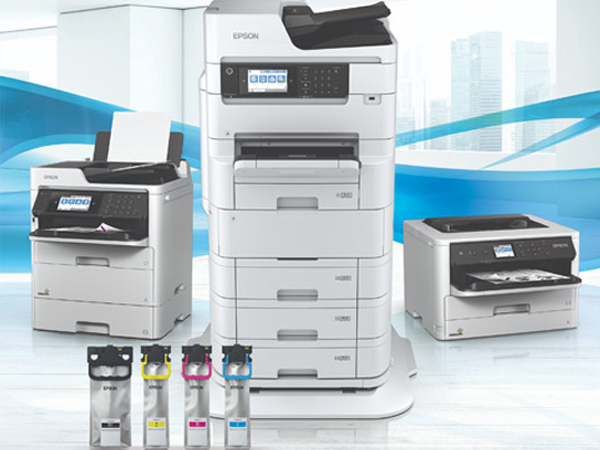
Switch to Heat-Free Technology for low power consumption. Even making a small change can really help. If everyone on the planet makes one small change, it can have a huge positive impact. Starting one page at a time, we can change the story together.
Specialists in
Large Format
Printing Machines
Large Format
Printing Machines
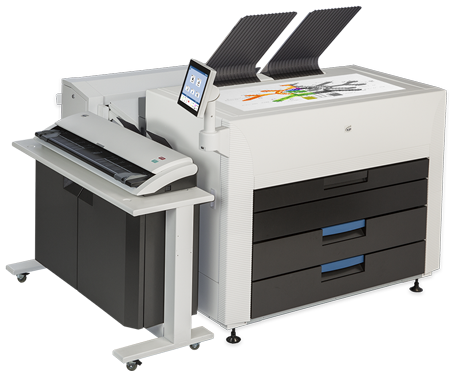
As Authorised Dealers, Faxco offers the latest range of large format printing solutions from KIP. With an extensive portfolio of large format digital printing and scanning products that more than meets the ever-increasing demand for fast, high quality and cost effective digital reproduction. Our dedicated Scottish Service Centre and Showroom gives you peace of mind that you will receive the best products, with the best technical support - at the right price!

For nearly three decades, Faxco have moved with technology offering products such as Samsung's 'World First' Android compatible range and EPSON's latest EcoTank Multifunction Printers through to the best large format machines. And, with Technical Support throughout the UK, you are assured of a high quality service and on-hand technicians to keep your company's print efficiency at it's maximum.
Managed Print
Services for
over 29 Years
Services for
over 29 Years
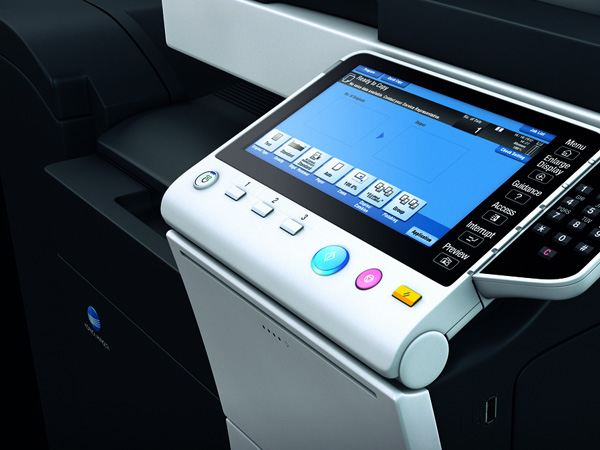
At Faxco we can supply a range of products and service tailored to your businesses exact requirements from world leading manufacturers such as EPSON, Kyocera, Samsung and Konica Minolta
From a basic desktop printer or multifunctional device to a full print room environment, we offer an end to end solution with expert advise and assistance at every step through your decision making process. We are professional on every level and will only ever offer you best advise and best working practices. We are open, friendly and extremely well experienced and respected within our industry. Please continue to scroll down to the specific knowledge and product area. We look forward to speaking with you when you require our professional and friendly advice.

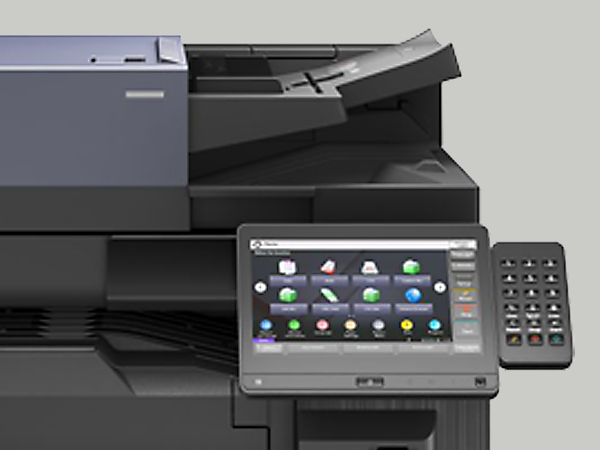
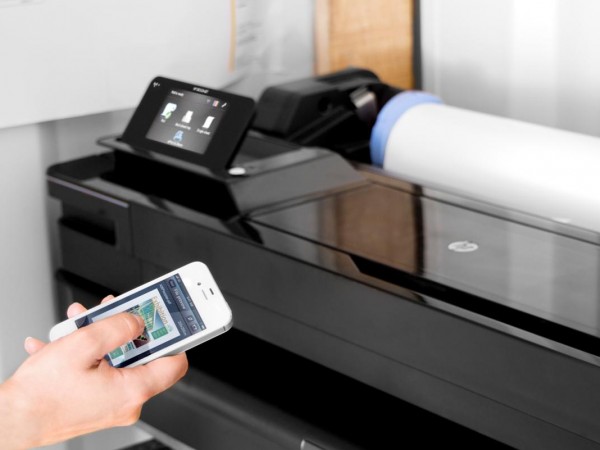
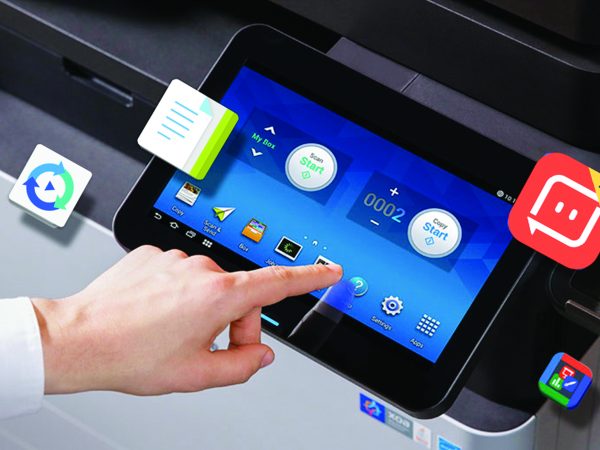
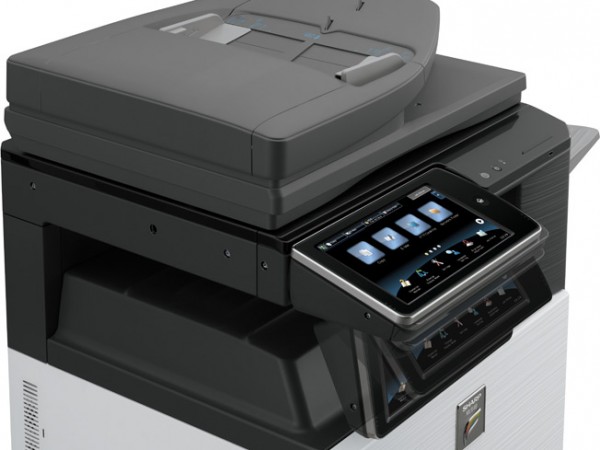
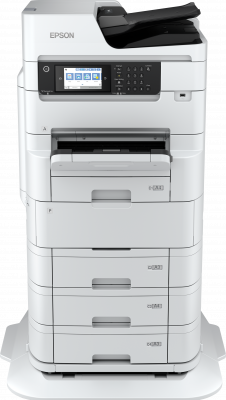
EPSON WorkForce Pro WF-C879RD3TWFC
Print up to 86,000 pages in mono and 50,000 pages in colour without interruption, thanks to super high-yield ink packs1
- High-capacity ink yield
- Faster FPOT
- Improved scan quality
With Epson’s WorkForce Pro RIPS WF-C879R, enjoy uninterrupted printing of up to 86,000 pages in mono and 50,000 in colour without changing supplies¹. This ultra-reliable inkjet multifunction printer incorporates our ground-breaking Replaceable Ink Pack System (RIPS) technology offering low user intervention, less waste and low energy consumption.
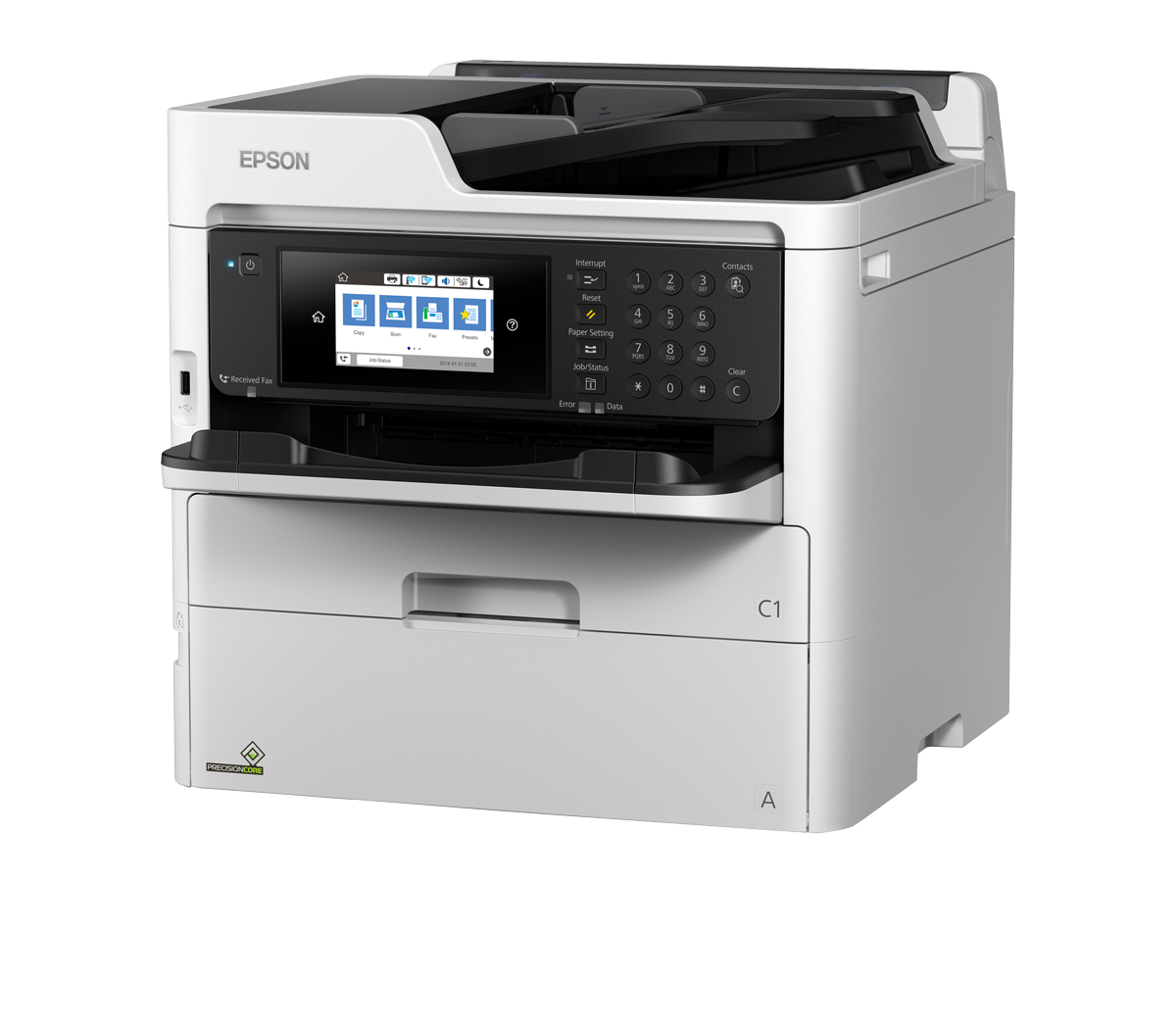
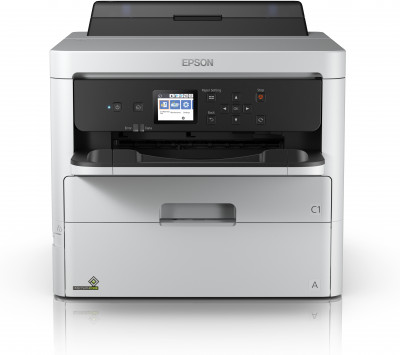
EPSON WorkForce Pro WF-C529RDW
High-yield A4 RIPS printer
Fast print speeds with a smaller footprint, our latest A4 RIPS printer delivers low TCO and a low environmental impact.
- Fast A4 printing
- Low TCO and energy use
- High ink yields
High ink yields of up to 50,000 pages in black and 20,000 in colour make this a powerhouse for offices. Increase your business productivity with less intervention, a fast first page out time, and secure printing rules and workflow processes, all while reducing your printing costs and environmental impact.
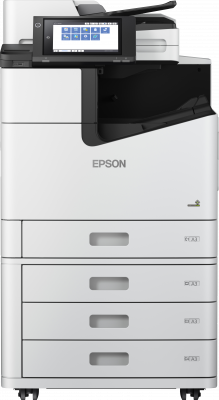
EPSON WorkForce Enterprise WF-C20750
Eco-responsible fast MFP
With print speeds of up to 75ppm this eco-responsible MFP offers impressive reliability and high print yields, reducing operational costs
- Eco-responsible MFP
- Robust finishing options
- High capacity ink yield
Print up to 100,000 pages in mono or 50,000 in colour without changing the supplies. This reliable, low maintenance 4-in-1 device² offers high-speed performance, superior image quality, all with significant sustainability advantages over laser models.